No remote right now? Use your phone. NoRemote is free for one TV.
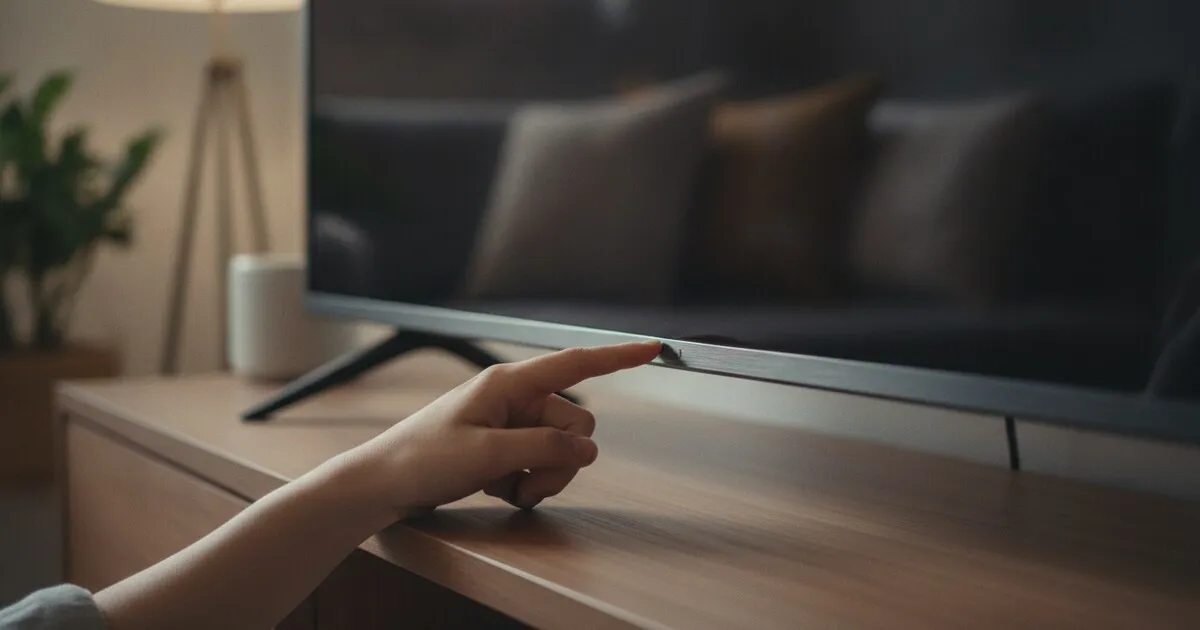
Press the small button on the TV itself. On most Roku TVs it sits under the bottom center edge, behind the status light, or on the back near a lower corner, and a short press turns the TV on. To actually use the TV after that, put your phone on the same Wi-Fi as the TV and open a phone remote app: Roku TVs need no pairing, so the phone works as a full remote within a minute or two.
How to turn on a Roku TV without the remote: the button on the set
Every Roku TV has at least one physical button. The trouble is that TCL, Hisense, onn, Insignia and other makers each put it somewhere different, and many hide it under the frame where you can’t see it from the sofa.
Roku’s own Roku TV User Guide says the buttons sit on the side, bottom or back panel. If the spot is not obvious, Roku says to check the bottom center of the TV behind the status indicator light, or the back panel near the lower right or left side. TCL’s power troubleshooting page gives the same list for its sets: under the center of the TV, behind the TCL logo, along the bottom edge, or on the back or side.
What the button does on each panel style
Roku TVs come with a few different panel designs. The user guide lists them:
| Panel design | How to turn the TV on |
|---|---|
| Single button | Short press, under 2 seconds. A long press, over 2 seconds, turns it off. |
| Two buttons | The lower button works like the single button. |
| Three buttons or gamepad-style joystick | Use the middle or center button. |
| Four or five labeled buttons | Press POWER. |
On single-button sets, a short press while the TV is already on opens the Input list. Keep short-pressing to step through the inputs, then wait and the TV switches.
If nothing happens when you press the button, check that the TV is plugged in and the status light is lit. TCL’s page suggests the button test as a way to split the problem: if the TV turns on from its own button, the TV has power and the remote is the issue.
How to use a Roku TV without a remote: your phone
The panel buttons get the TV on. They don’t get you far after that. Roku’s guide says it plainly: panel buttons “are not a substitute for the remote.” You can’t open apps, change settings or type a search with them.
Your phone fills that gap. Roku TVs accept control over the home network, so a phone on the same Wi-Fi can act as the full remote: power, the D-pad and OK, Back, Home, volume, and a keyboard for search boxes.
Here is how to work a Roku TV without a remote using your phone:
- Turn the TV on with its button if it isn’t on already.
- Connect your phone to the same Wi-Fi network the TV uses. If your router has separate 2.4GHz and 5GHz networks, use the same one as the TV.
- Turn off any VPN on the phone. A VPN can hide the TV from the app.
- Open a Wi-Fi remote app and wait for it to list your Roku TV.
- Tap the TV. There is no code or prompt to accept on a Roku TV.
You have two honest options for the app. Roku’s own free mobile app has a remote built in, and Roku’s support page on the app says its power button turns the device on and off. A universal remote app such as NoRemote also works, and it is the better pick if your home has more than one TV brand (more on that below).
If your phone can’t find the Roku TV
Most “no devices found” problems come from the network, not the TV. Roku’s guide to connecting a phone lists these checks, and they apply to any Wi-Fi remote app:
- iPhone permission. Go to the iPhone’s Settings, find the remote app and turn on Local Network. Without it, iOS blocks the app from seeing the TV.
- Same band. A phone on the 5GHz network and a TV on 2.4GHz can fail to see each other, even with similar names.
- Router blocking. Guest networks, hotel Wi-Fi and some mesh systems keep devices from talking to each other. A phone remote won’t work there.
- Restart the TV. Unplug it from the wall, wait, and plug it back in.
There is also a setting on the TV that can switch off phone control entirely: Settings > System > Advanced system settings > Control by mobile apps > Network access. Roku’s guide says Default suits most cases, including the Roku mobile app, while Disabled blocks every outside command. If someone set it to Disabled, you’ll need a physical remote to change it back.
Our TV not found checklist walks through the same checks one at a time.
Phone remote when the TV is in standby
A phone app can usually wake a Roku TV from standby, because the TV stays on your network while it sleeps. Roku’s guide notes that with maximum power savings, the TV drops into a very low power standby a few minutes after you turn it off. If the phone’s power button doesn’t wake the TV, press the button on the set once, then carry on from the phone.
How NoRemote helps with a Roku TV, and its limit
NoRemote is a free Wi-Fi remote app for iPhone and Android. For Roku TVs there is nothing to pair: pick the TV from the list and it connects. That covers Roku players and Roku TV models from TCL, Hisense, onn and some Insignia sets.
The full remote is free for one TV: power, volume, channel, the D-pad and OK, Back, Home, the number pad and input switching. You can type into Roku search boxes with your phone’s keyboard instead of pecking at letters on screen, and open streaming apps on the TV from the phone. There’s no account to make and no ads.
NoRemote helps most in a mixed household, since one app controls Samsung (2016 and newer), LG, Vizio and Google TV sets too, plus Fire TV once ADB debugging is turned on in its Developer Options. Not sure about a particular TV? The will it work checker tells you before you install.
The honest limit: NoRemote only works over Wi-Fi. The phone and the TV must be on the same network, and the TV must already be connected to it. NoRemote can’t fix a Roku TV that has lost its Wi-Fi settings, and it has no infrared, so it can’t stand in for an IR remote on that TV.
NoRemote is not affiliated with Roku, TCL or Hisense.
When the Roku TV is off the Wi-Fi
This is the hard case. Roku’s support page says that if the device isn’t connected to the internet, for example after a reset or during first-time setup, the mobile app can’t detect it. Any phone remote has the same problem, and the panel buttons can’t navigate the Network menu.
You have three ways out:
- Recreate the old network. If the TV dropped off because you changed your router or its password, set your phone’s mobile hotspot (or the new router) to the exact network name and password the TV knew before. The TV may reconnect on its own. Then join a second phone or tablet to that network, control the TV from it, and go to Settings > Network > Set up connection to move the TV onto your current Wi-Fi.
- Buy a replacement remote. A basic Roku simple remote uses infrared and needs no pairing, so it works the moment you put batteries in. It’s the cleanest fix for a TV stuck at setup.
- Use a universal IR remote. If you already own one, our remote codes tool lists codes by brand.
If “Roku TV” means a Roku stick on another TV
Some people say “Roku TV” when they mean a Roku streaming stick or box plugged into a Samsung, LG or other set. In that case the phone app controls the Roku player, not the TV itself.
Roku’s support page explains how to get TV power from the player. Press Home, go to Settings > System > Control other devices (CEC) and turn on 1-Touch Play and TV Power. The player has to have power for this to work, and Roku notes it may fail if the stick is powered from the TV’s USB port. Plug it into the wall with its own adapter instead.
If the TV underneath is a Samsung, our guide on how to turn on a Samsung TV without a remote covers its control stick. Hisense owners can check which system their set runs in our Hisense TV remote app guide, and Insignia owners can do the same in the Insignia TV remote app guide.
Frequently asked questions
Is there a power button on a Roku TV?
Yes. Every Roku TV has at least one panel button on the side, bottom or back. Roku says to check the bottom center behind the status light first, then the back panel near the lower right or left corner.
Can I use my phone as a remote for a Roku TV?
Yes, as long as the phone and the TV are on the same Wi-Fi network and the TV is already connected to it. Roku TVs need no pairing code, so a phone remote app finds the TV and works right away. Roku’s own free mobile app does the same job.
Can I turn on my Roku TV with my phone?
Usually, yes. The power button in a phone remote app wakes a Roku TV that is in standby on your network. If the TV has no power at the outlet or has lost its Wi-Fi connection, the phone cannot reach it, so press the button on the set instead.
How do I connect my Roku TV to Wi-Fi without a remote?
The panel buttons cannot move through menus, so you need some kind of remote for the Wi-Fi screen. A common workaround is to set your phone’s hotspot to the exact network name and password the TV used before, then control the TV from a second phone or tablet on that hotspot. Otherwise, a replacement Roku remote is the fix.
Why can’t my phone find my Roku TV?
The most common reasons are a different network or band (2.4GHz vs 5GHz), a VPN on the phone, or the iPhone’s Local Network permission being off for the app. Guest and hotel Wi-Fi often block devices from seeing each other. On the TV, Settings > System > Advanced system settings > Control by mobile apps must not be set to Disabled.
What can I do on a Roku TV with only the panel buttons?
Panel buttons handle power, input switching and, on some models, volume. Roku states they are not a substitute for the remote. To open apps, change settings or type a search, you need a phone remote or a physical remote.
Sources
- Roku TV User Guide, version 13.0 (US): panel buttons, Control by mobile apps, standby, network setup
- Roku: use the Roku remote app without a remote
- Roku: connect your phone to a Roku device with the mobile app
- TCL: how to troubleshoot a TV that will not power on
- Hisense USA: TV common questions
NoRemote turns your phone into a free Wi-Fi remote for one Roku TV, with nothing to pair.