No remote right now? Use your phone. NoRemote is free for one TV.
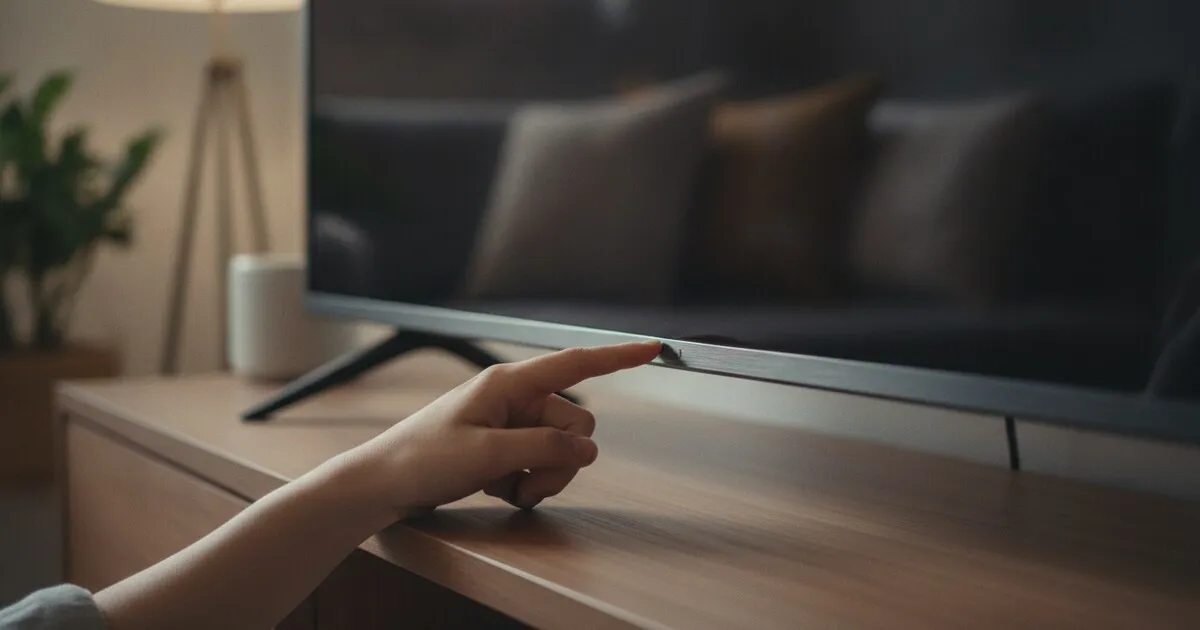
The fastest way to turn on a Samsung TV without a remote is the TV Controller button on the TV itself. On most recent Samsung TVs it sits on the bottom edge, in the middle or near the bottom right corner; press it once and the TV powers on. Once the TV is on, a phone on the same Wi-Fi can take over as the full remote for any Samsung Smart TV from 2016 or newer.
Below: where the button hides on different models, how to use it to change inputs, and how to set things up so your phone can turn the TV on next time.
How to turn on a Samsung TV without the remote: the TV Controller button
Every Samsung TV has a physical control, but Samsung moves it around from model to model. Samsung’s US support page for recent models says the TV Controller is at the bottom of the TV, either in the middle or the bottom right corner. That same small module also holds the remote sensor and, on some QN, Q and S series sets, a microphone switch.
Run your fingers along the underside of the frame rather than looking for it from the front. Most of these buttons face down and are invisible when you’re standing in front of the screen.
Where to look, by layout (Samsung’s guide to controlling a TV without a remote lists these):
- Bottom edge, center or right. The usual spot on current models. Samsung’s 2025 TV guide says the shape and exact position vary by model.
- Back of the TV, bottom right corner. Samsung calls this the most likely spot on many sets. It’s a small stick that moves up, down and side to side, with a button in the middle.
- Middle of the front bezel. Certain 2018 models have a single button here.
- Bottom of the bezel, right side as you face the TV.
Not sure what year your TV is? The model number on the sticker on the back tells you. Our Samsung TV model year tool decodes it in a few seconds, and the year also tells you whether a phone remote will work (2016 or newer).
Press once or press and hold?
It depends on the controller. On the single-button controllers on 2025 models, Samsung says a regular press turns the TV on or off. On the older stick-style controllers, Samsung’s instructions say to press and hold the center of the stick to power on.
If nothing happens with a short press, hold it for a couple of seconds. If the TV still stays dark, check the power cable at both ends and try another outlet before assuming the TV is faulty.
On a brand-new 2025 set, a dim picture after power-on usually means the protective film is still on. Samsung says to remove the film from the SAMSUNG logo and the bottom of the TV.
Using the button to change inputs and settings
The same button works as a tiny menu once the TV is on. Samsung’s pages describe the pattern:
- Press the TV Controller button while the TV is on. A Control menu appears at the bottom of the screen.
- Press again to move the highlight to the next item.
- Press and hold to select the highlighted item.
- To turn the TV off, move to the power off item and press and hold.
From this menu you can reach the source list, volume, channels and settings, though it’s slow. On 2025 models the Control menu also has a Mobile Remote item. Select it and the TV shows a QR code you scan with your phone to open Samsung’s SmartThings remote.
How to turn on a Samsung TV without remote control, using your phone
The button gets the TV on. A phone gets you back to normal: volume, the D-pad, apps and typing, from the sofa. Here’s what has to be true first:
- The TV is a Samsung Smart TV from 2016 or newer. NoRemote doesn’t support older Samsung systems.
- The phone and TV are on the same Wi-Fi network. Not a guest network, not mobile data.
- The TV is already on that network. If the TV was moved or the router changed, it won’t show up. Use the TV Controller menu to open Settings and reconnect it to Wi-Fi first.
- The TV is on, or in network standby. A phone finds the TV over the network, so the TV has to be listening.
That last point is the catch with “turn on.” A phone can only wake a Samsung TV that’s set up to accept a wake signal over the network, and only after the phone has connected to it at least once. If your TV is fully off and you’ve never paired a phone with it, use the button this time and set up the phone for next time.
Samsung’s Power On with Mobile setting
Samsung’s own setting for waking the TV from a phone is called Power On with Mobile. According to Samsung’s SmartThings power-on guide, you’ll find it here:
- 2022 and newer models: Settings > All Settings > Connection > Network > Expert Settings > Power On with Mobile.
- 2017 to 2021 models: Settings > General > Network > Expert Settings > Power On with Mobile.
Samsung is clear that with this setting off, SmartThings can’t power the TV on. Samsung notes that menu names vary by region and model year, so if your path looks slightly different, look for Expert Settings under Network.
Turn it on while the TV is already awake. Then the next time the remote goes missing, you can try the power button on your phone before you start digging through the couch.
How NoRemote helps with a Samsung TV
NoRemote turns your phone into a remote for Samsung Smart TVs from 2016 on, over your home Wi-Fi. It finds the TV on the network by itself. The first time, pick your Samsung TV in the app and choose Allow on the TV screen; after that it connects without the prompt.
For one saved TV, every button is free: power, volume, channels, the D-pad and OK, Back, Home, the number pad and input switching (HDMI, TV, AV). You can type searches with your phone’s keyboard instead of pecking at an on-screen keyboard, and open streaming apps on the TV from the app launcher. There’s no account to create and there are no ads.
Power-on works through Wake-on-LAN where the TV supports it, so turning on Power On with Mobile (above) gives it the best chance on a Samsung set. It’s best effort.
The honest limit: NoRemote can’t turn on a TV that is fully off, unplugged or not on your Wi-Fi, and it won’t work on pre-2016 Samsung TVs or on a different network from the TV. For those, the TV Controller button is the answer, and a replacement remote or universal IR remote is the long-term fix. If the app can’t see your TV, our TV not found checker walks through the usual causes.
NoRemote is an independent app and isn’t affiliated with Samsung.
What doesn’t work when you’re stuck without the remote
A few things people try that waste time:
- Waiting for the phone to find a TV that’s off. If the TV was unplugged or never joined your Wi-Fi, no phone app can see it. Press the button first, then connect.
- Pointing your iPhone at the TV. iPhones have no infrared transmitter, so IR “remote” apps can’t talk to the TV from an iPhone. A Wi-Fi remote works because it uses the network instead.
- Blaming the TV when the remote is the problem. If you found the remote but it does nothing, Samsung’s remote not working guide suggests a reset: take the batteries out, hold the Power button for eight seconds, then put the batteries back. You can also check for an IR signal by pointing the remote at a phone camera and holding Power. Our remote not working tool covers the rest.
If you also own a Roku TV, the steps are different there; see how to turn on a Roku TV without the remote. LG owners can read our guide to the LG TV remote app.
Frequently asked questions
Where is the power button on a Samsung TV?
Samsung calls it the TV Controller button. On recent models it sits on the bottom edge of the TV, either in the middle or near the bottom right corner. Some older sets have a small control stick on the back, bottom right, and some 2018 models have a single button in the middle of the front bezel.
Can I turn on my Samsung TV with my phone?
Often, yes, but only if the TV has been connected to the phone before and is set up to wake from the network. Samsung’s setting for this is called Power On with Mobile, under the Network, Expert Settings menu. If the TV is fully off and was never set up, use the TV Controller button first.
How do I turn on my Samsung TV without the remote or the button?
A game console or streaming box plugged in over HDMI may switch the TV on when it starts, if HDMI-CEC is turned on for both. A phone can also wake a Samsung TV over Wi-Fi when Power On with Mobile is enabled (Samsung documents it for 2017 and newer models). If none of that is set up, the button on the TV is the only reliable way.
Why won’t my Samsung TV turn on with the button?
First check that the TV is plugged in and the outlet works. Press the button once, and on older stick-style controllers press and hold the center. If the screen looks dim on a new 2025 model, Samsung says to peel the protective film off the SAMSUNG logo and the bottom of the TV.
Does a phone remote work on an old Samsung TV?
Wi-Fi phone remotes like NoRemote work with Samsung Smart TVs from 2016 and newer. Older Samsung sets and non-smart Samsung TVs need the TV’s own buttons, a Samsung replacement remote or a universal IR remote.
Can I change inputs on a Samsung TV without a remote?
Yes. Press the TV Controller button while the TV is on to open the Control menu, keep pressing to move to the source option, then press and hold to select it. A phone remote also has an input button once it is connected.
Sources
- Using the TV Controller: CU7, CU8, Q6*C, S90CA, S90CD (Samsung US)
- How to control a Samsung TV without a remote (Samsung)
- Turn your 2025 Samsung Smart TV on or off using the TV controller buttons (Samsung)
- Power on your TV with the SmartThings app (Samsung)
- Samsung remote is not working (Samsung US)
NoRemote is a free Wi-Fi remote for Samsung Smart TVs from 2016 on, and it keeps the TV usable while the remote is missing.